Connect with one button
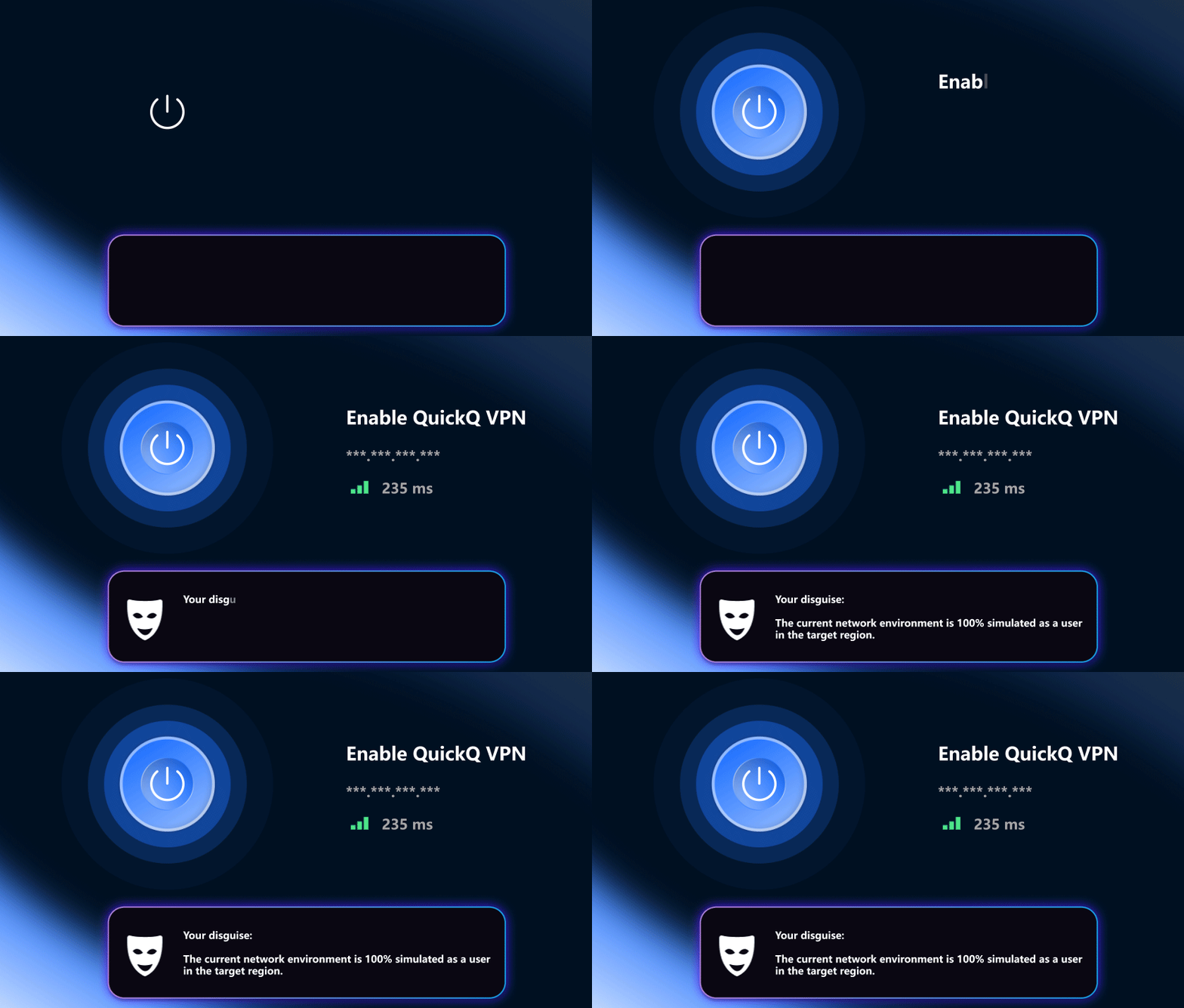
No address, no port. Press connect and the client makes the rest of the calls.
Checked on August 17, 2026
If you came for the QuickQ client download, this page covers it. QuickQ is a small connection manager with builds for Windows, macOS, Android and iOS, and one account carries across the devices you use. The main screen keeps a single connect button because route choice and settings are decided for you — most people go from download to connected in under two minutes.

Work that meant digging through system settings now sits behind one button.
No address, no port. Press connect and the client makes the rest of the calls.
Round-trip time is measured at a fixed interval in the background, and whichever route responds best is used.
Chosen apps take the optimised route while the rest stay as they were, so internal tools keep working.
Up and down rates and the length of this session are visible, so nothing is guesswork.
Computer and phone can be online together, and the device list drops whichever sits idle.
New builds arrive in the background and apply next launch, so a call in progress is never cut.

Playback and voice live on steadiness rather than peak throughput. Lose a slice of bandwidth and the picture still plays; add jitter and the progress bar sticks while words start clipping. The QuickQ client tries to keep these sessions on routes that wobble less, so scenes cut cleanly and pauses in a call grow rarer.
When the route in use turns bad, the swap happens in the background. Players rarely rebuffer, and you tend not to notice at all.

Games, remote desktops and documents edited by several people at once feel good or bad according to round-trip time and packet loss; advertised speed comes further down the list. So the client weighs how steady the delay is first, then whether bandwidth is ample.
A live latency figure sits on the panel. If the response feels slow, one click moves you to another route to try again.
No networking knowledge required; just take them in order.
Pick the build for your system on the download page. The file is small and finishes in seconds on ordinary home broadband.
Register with an everyday mailbox. On your next device, sign in with the same account instead of setting things up again.
Press connect on the main screen, wait for the connected state, then carry on with your usual apps.
Windows 10 or newer, macOS 12 or newer, Android 8.0 or newer and iOS 14 or newer. All four share the same features and follow your system language.
Downloading and installing are free. Basic features work as soon as you register, and whether you move to a subscription is up to you.
Several can be online at once. The exact number is stated on the subscription page, and the device list lets you adjust it.
Choose password recovery on the sign-in screen; a verification message reaches your registered mailbox, then follow the prompts.
Use the client only within the laws and regulations that apply where you are. It must not be used for unlawful purposes.